
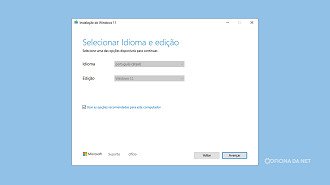
Microsoft has released a new version of the Windows 11 Media Creation Tool that includes the most recent operating system update, along with the June 2026 Patch Tuesday. The tool now generates installation media for builds 26100.8655 (Windows 11 24H2) and 26200.8655 (Windows 11 25H2), both linked to the cumulative update KB5094126.
The new feature makes it easier for users looking to do a fresh system installation, create a bootable USB drive, or reinstall to troubleshoot computer issues. But the update comes at a critical moment, with reports emerging shortly after Patch Tuesday of significant issues linked to KB5094126.
The June update from The Net Workshop has been leading to issues such as blue screens, boot failures, BitLocker recovery key requests, and OneDrive sync errors on certain computers, particularly HP models.
What is different with the Media Creation Tool update?
The Media Creation Tool is the authorized Microsoft tool used for downloading the most recent Windows 11 image and making installation media on USB drives or producing ISO files.
With the new update, users of the tool will now get an image of the system that includes security updates and new features launched in June, such as performance enhancements, audio sharing across apps, improved camera support, and updates to Secure Boot certificates.
Users performing a clean installation won’t have to separately download the KB5094126 via Windows Update right after finishing the initial setup.
The Media Creation Tool update offers more convenience but includes the same build causing complaints among users.
chsyys/DepositPhotos
KB5094126, as reported recently, may lead to issues such as startup errors, blue screen crashes, unexpected BitLocker key requests, OneDrive difficulties, incomplete installations impacting the Start menu, and Windows search problems.
Microsoft has not yet acknowledged all the issues on its Windows 11 “known problems” page.
Is it worthwhile to utilize the Media Creation Tool at this moment?
Media Creation Tool is the safest and most recommended option by Microsoft for users who have to reinstall the system because of file corruption, Windows Update crashes, or performance issues.
Some users experiencing issues with the installation of KB5094126 found that reinstalling Windows with the most recent image fixed ongoing problems with Windows Update and DISM.
Those with a computer operating smoothly, particularly HP laptops, might want to hold off on making an installation media with the new version until Microsoft assesses the issues and issues a necessary patch.
How to get the Media Creation Tool.
The software is available for free on the official Microsoft website and can be used on PCs that meet the minimum Windows 11 requirements. Once activated, users can select to either make a bootable USB or generate an ISO file for future installation.
It is advised to back up your important files before installing or reinstalling Windows 11 with the latest version of Media Creation Tool, especially if your computer has BitLocker enabled or is in a corporate setting.
What issues are associated with the KB5094126 update?
The most severe issues typically arise shortly after the update is installed, based on the current findings.
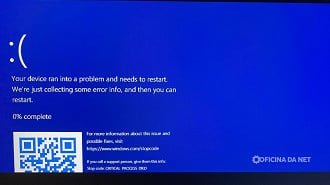
Some HP computers may encounter issues with Windows 11 startup, leading to a blue screen error or prompting the BitLocker recovery screen for the system to be accessed.
Reports have emerged about issues with the File Explorer, including users experiencing problems with OneDrive syncing and encountering an empty or unstable service folder in the Windows sidebar.
Companies are encountering challenges following the update, with certain enterprise applications and managed environments experiencing issues, particularly on systems with stringent security settings and integration with BitLocker.
Among the issues that have been documented up to this point are:
- BSOD occurs after the update is installed.
- Entry into BitLocker recovery mode occurred unexpectedly.
- Some HP laptops are experiencing issues with boot failures.
- File Explorer is experiencing issues syncing with OneDrive.
- Enterprise applications are not functioning properly.
- Facilities experiencing crashes or malfunctions while updating.
Has Microsoft acknowledged the bugs?
Microsoft has not yet acknowledged or addressed these problems on the official Windows 11 “known issues” page or initiated a public investigation into the reports.
The company may be reviewing telemetry data before making an official statement in response to complaints that emerged shortly after Patch Tuesday was released.
The KB5094126 update is essential as it addresses crucial security flaws, so it is advisable not to uninstall it immediately unless the computer is severely malfunctioning.
What steps should be taken if your computer has been compromised?
If you encounter issues after installing the update, take some basic steps to address them. Although Microsoft has not acknowledged these problems, it is advisable to save the BitLocker recovery key in your Microsoft account as a precautionary measure until a fix is available.
Backup important files before starting any process. Check for new optional updates or drivers on Windows Update. If the system doesn’t start, try accessing the Windows Recovery Environment.
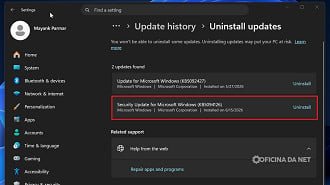
Consider removing the KB5094126 update through recovery mode if you encounter any issues right after installation.
chsyys/iStock
Corporate users are advised to hold off on removing the update until they receive guidance from the IT department, as deleting it could impact security and compliance regulations.
Any updates on the KB5094126 update?
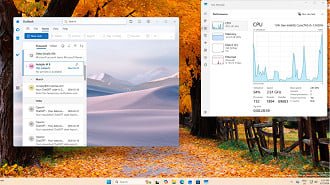
A notable development in the June Patch Tuesday is the introduction of the Low Latency Profile in Windows 11. This feature aims to enhance the system’s responsiveness during certain activities, like opening applications or navigating system menus, by temporarily boosting processor performance to minimize glitches and slowdowns.
This can be most noticeable on computers that were starting to slow down in daily use. While it won’t give the computer a new processor, it can improve system responsiveness when opening programs, switching windows, or navigating menus.
The camera can now operate across multiple applications simultaneously.
The Multi-App Camera feature allows users to use the webcam for multiple applications simultaneously, which is a helpful improvement in Windows.

Windows 11 now permits multiple applications to utilize the camera at the same time, which is beneficial for various activities such as live streaming, virtual classes, online meetings, and using accessibility tools.
Microsoft included a simple camera mode for situations when the webcam has issues, aiming to simplify camera operation and address stability issues on certain devices.
Now you have distributed the audio.
The update also introduces Shared Audio, a function that enables playing audio simultaneously on two devices. This feature can be handy, such as when two individuals want to watch a video on a laptop with separate headphones.
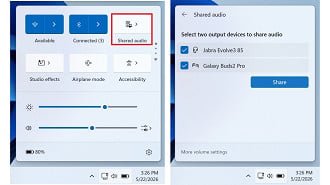
Many individuals have attempted to divide audio on Windows using adapters, manual tweaks, or third-party tools, but now the aim is to simplify this process directly within the system.
Availability may differ based on computer hardware and audio drivers, so the novelty may not be experienced uniformly by all users.
File Explorer search has been enhanced.
The Archives Explorer has been updated to display search results with fewer characters typed, making searches for documents, images, videos, and folders quicker.
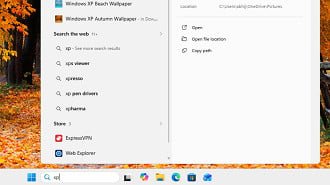
Windows users dealing with numerous files are aware that Explorer’s search function may not always be quick or precise. Microsoft is making progress in this area, with the June update offering some improvements.
The company continues to work on improving the Explorer to make it more flexible and dependable, including changes related to long file names and search behavior.
Task Manager demonstrates more efficient utilization of the NPU.
Microsoft is increasingly focusing on NPU chips for AI tasks in newer computers, with the Task Manager now providing improved visibility on their usage during the June Patch Tuesday.
For individuals using a standard PC without an NPU, there may not be significant changes. However, the update is crucial for newer laptops, particularly Copilot+ PCs. This enhancement allows users to monitor when AI functions are utilizing the specialized chip instead of depending solely on the processor or video card.
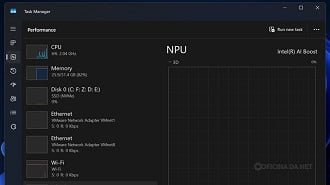
This information enhances Windows transparency for individuals interested in performance, battery usage, and hardware.
Microsoft also made advancements in Secure Boot.
The June update includes significant modifications to Secure Boot, a security feature designed to safeguard the computer’s boot process, in addition to the visible news.
Microsoft is getting ready to update Secure Boot certificates as some certificates on Windows devices are set to expire starting June 2026. The company stated that PCs without the new certificates will operate normally for now, with updates being distributed gradually through Windows Update.
Virtualization and gaming error solution
The KB5094126 update addresses an issue that could lead to error screens on certain computers following the installation of the optional update KB5089573. The issue was associated with system reboot, virtual machines, and specific games.
Microsoft mentioned two errors, HYPERVISOR_ERROR and KMODE_EXCEPTION_NOT_HANDLED, which can be alarming for users as they may appear on blue screens or cause more severe system issues.
The company states that with the June update, they fixed this issue. It may be crucial for those experiencing instability post the optional May update to install Patch Tuesday.
Custom folders may experience icon loss under certain circumstances.
Microsoft has also made a security change in how Windows handles desktop files.
Some users might observe that custom icons or folder names in different languages do not display accurately when downloading content from the internet or remote locations. The company assures that access to folders remains unaffected, and the files are still present; the issue is simply a visual one.
AI elements have been recently upgraded.
Microsoft has enhanced the internal elements of Windows 11, such as image search, content extraction, semantic analysis, and configuration model.
These updates aim to ready the system for more advanced capabilities, particularly on computers that support local AI resources. Users may not always notice these updates right away, but they are part of Microsoft’s plan to transform Windows 11 into a more connected platform with AI integration.
How to set up KB5094126
To install the Patch Tuesday update for June 2026, simply follow this route:
Settings > Windows Update > Advanced Options > Additional updates
The package should be displayed as 2026-06 Windows 11 KB5094126 Cumulative Update.
Windows should automatically download and install most of the updates for security purposes, but users can manually search to expedite the process if desired.
After the installation is complete, you will have to reboot the computer to finish the update.
Paraphrased: Origin
